Google TV: A Comprehensive Guide to Setup and Hardware
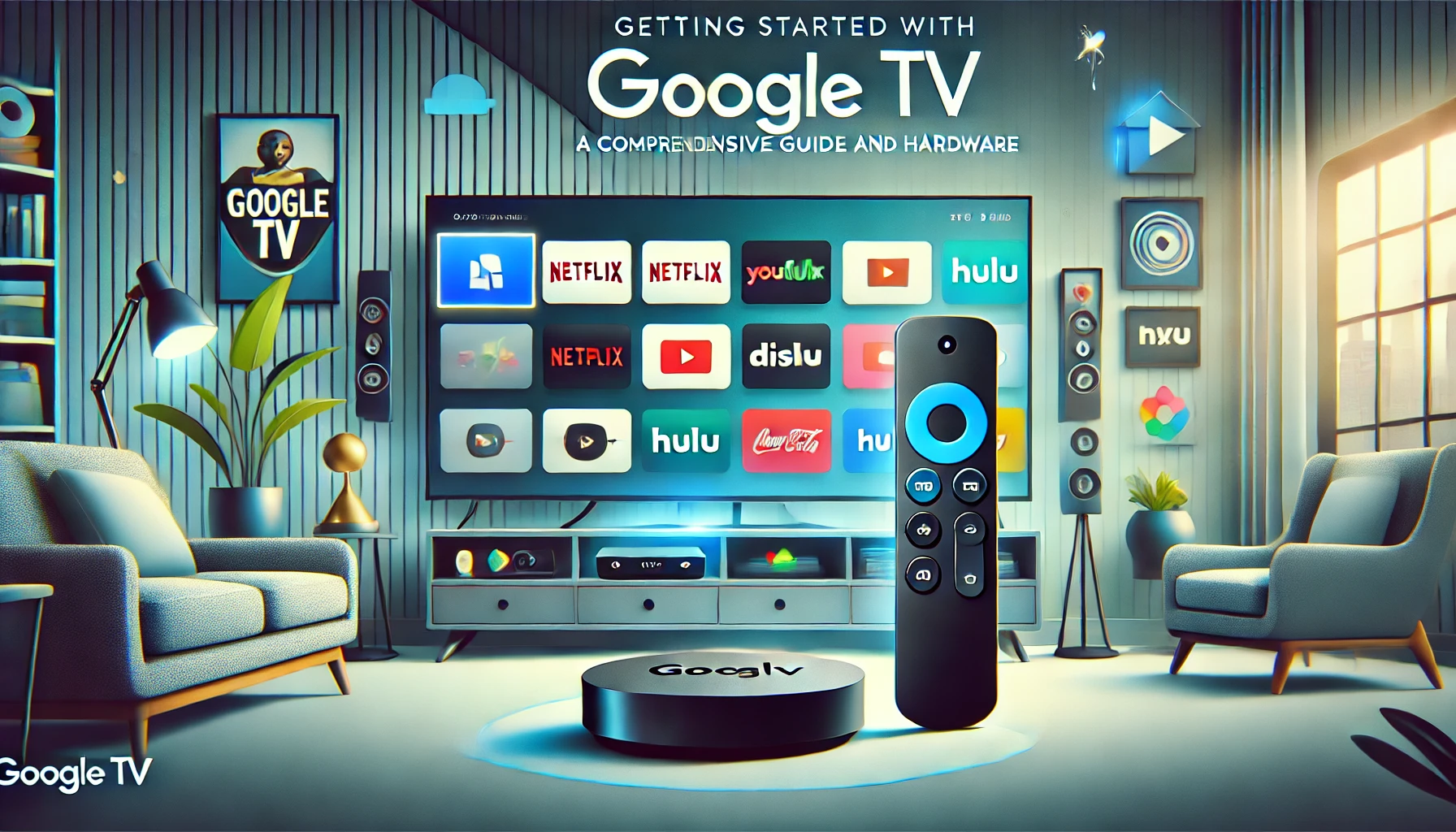
The Google TV Streamer is revolutionizing how we consume digital content, bringing together various streaming services, apps, and live TV into one user-friendly interface. Whether you’re a tech enthusiast or a casual viewer, Google TV offers something for everyone. This guide will help you get started with Google TV, from setting up your hardware to exploring its features and services.
Understanding Google TV and Google Chromecast
Google TV is a smart TV platform developed by Google. It integrates with Google services like Google Assistant and Google Photos, offering a personalized and intuitive viewing experience. On the other hand, Google Chromecast is a streaming device that works seamlessly with Google TV to cast content from your phone or tablet to your TV.
Key Features of Google TV:
- Personalized recommendations
- Integration with Google Assistant
- Support for multiple user profiles
- Access to a vast library of apps and games
Setting Up Your Google Chromecast:
- Plug the Chromecast into your TV’s HDMI port.
- Connect the USB power cable to the Chromecast.
- Download the Google Home app on your smartphone.
- Follow the instructions on the app to connect Chromecast to your Wi-Fi network.
- Start streaming by casting content from your device to your TV.
Learn More About Google TV Hardware: For more detailed instructions and support, you can visit the Regent Studies website.
Exploring the Google TV Remote
The Google TV remote is designed to make navigation easy and intuitive. With voice control features and dedicated buttons for popular streaming services, you can quickly access your favorite content.
Key Functions of the Google TV Remote:
- Voice control with Google Assistant
- Quick access buttons for YouTube and Netflix
- Navigation buttons for easy browsing
Tips for Using the Google TV Remote:
- Use the voice control feature to search for shows, adjust volume, or control smart home devices.
- Customize the buttons to launch your preferred apps.
- Pair the remote with your TV for seamless control of both the TV and the streaming device.
Setting Up Google TV: A Step-by-Step Guide
Setting up Google TV is straightforward. Follow these steps to get started:
- Connect the Google TV device to your TV using an HDMI cable.
- Power on the device and follow the on-screen instructions.
- Sign in with your Google account to personalize your experience.
- Download and install your favorite apps from the Google Play Store.
- Customize your home screen with your preferred content and apps.
Common Setup Issues and Solutions:
- Issue: Unable to connect to Wi-Fi.
- Solution: Ensure your Wi-Fi network is working and the password is correct. Restart your router and the Google TV device.
- Issue: Remote not pairing.
- Solution: Replace the batteries in the remote and follow the pairing instructions in the setup guide.
Google TV Apps and Streaming Services
Google TV offers access to a vast array of apps and streaming services, making it easy to find and enjoy your favorite content.
Popular Apps on Google TV:
- Netflix
- Hulu
- Disney+
- Amazon Prime Video
- YouTube
Best Streaming Services for Google TV:
- Netflix: A leading streaming service offering a wide range of movies, TV shows, and original content.
- Disney+: Home to Disney, Pixar, Marvel, Star Wars, and National Geographic content.
- Hulu: Provides access to live TV, on-demand streaming, and original series.
- Amazon Prime Video: Offers a large selection of movies, TV shows, and Amazon Originals.
- YouTube: The go-to platform for user-generated content, music videos, and more.
How to Install Apps on Google TV:
- Navigate to the Google Play Store on your Google TV device.
- Browse or search for the app you want to install.
- Select the app and click “Install.”
- Once installed, the app will appear on your home screen for easy access.
Keeping Your Google TV Updated
Regular updates are essential for keeping your Google TV running smoothly and securely. Google TV provides automatic updates, but you can also check for updates manually.
Steps to Update Google TV:
- Go to “Settings” on your Google TV device.
- Select “System” and then “About.”
- Click on “System update” to check for any available updates.
- If an update is available, follow the on-screen instructions to install it.
Benefits of Keeping Google TV Updated:
- Enhanced security features
- Improved performance and stability
- Access to new features and apps
Comparing Google TV with Roku
When it comes to streaming devices, Google TV and Roku are two of the most popular options. Both offer a wide range of features, but there are some key differences to consider.
Google TV vs Roku:
- User Interface: Google TV offers a more personalized and intuitive interface, while Roku is known for its simplicity and ease of use.
- Voice Control: Google TV has built-in Google Assistant for voice control, whereas Roku requires a separate remote with voice control capabilities.
- Content Integration: Google TV integrates with Google services and offers personalized recommendations, while Roku focuses on providing a straightforward streaming experience.
Which One Should You Choose? If you prefer a highly personalized experience with seamless integration with Google services, Google TV is the way to go. However, if you want a straightforward, user-friendly interface, Roku might be a better fit.
Google TV Subscriptions and Services
Google TV offers various subscription options to enhance your viewing experience. From streaming services to live TV, there are plenty of choices to suit your needs.
Popular Subscription Services on Google TV:
- Netflix: Offers multiple subscription plans based on the number of screens and streaming quality.
- Hulu: Provides options for on-demand streaming and live TV.
- Disney+: Offers monthly and annual subscription plans.
- Amazon Prime Video: Included with Amazon Prime membership or available as a standalone subscription.
- YouTube TV: A live TV streaming service with a wide range of channels.
How to Manage Subscriptions on Google TV:
- Go to “Settings” on your Google TV device.
- Select “Accounts & Sign-In.”
- Choose the account associated with your subscriptions.
- Manage your subscriptions by adding, canceling, or changing plans.
Navigating the Google TV Guide
The Google TV guide helps you find and organize your favorite content. With personalized recommendations and easy navigation, you can quickly discover new shows and movies.
Features of the Google TV Guide:
- Personalized recommendations based on your viewing habits
- Easy access to your favorite apps and channels
- Integration with Google Assistant for voice search and control
Tips for Using the Google TV Guide:
- Create profiles for different family members to get personalized recommendations.
- Use the search function to find specific shows, movies, or apps.
- Explore the “For You” tab to discover new content tailored to your interests.
Conclusion: Embracing the Future of Streaming with Google TV
The Google TV Streamer is more than just a streaming device; it’s a gateway to a world of entertainment. By understanding how to set up your hardware, explore its features, and keep it updated, you can enjoy a seamless and personalized viewing experience. Whether you’re comparing Google TV with Roku or exploring new apps and services, Google TV has something to offer everyone. Visit the Regent Studies website for more information and support. Embrace the future of streaming with Google TV, and transform how you watch TV.
For more detailed reviews and comparisons, you can check out this external link to stay updated with the latest in streaming technology.

You may also like